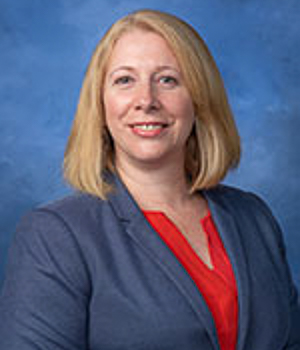
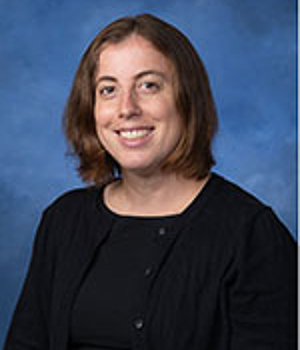
Prof. Steven Battilana, Computer Science (CSC) Dept., West Chester University (PA)

While focused primarily on WCU CSC students, this website also contains, and provides links to
FREE and very low cost academic and business resources including the "inc. gauge" KPI tool

Home | Hot! | Syllabus | Schedule/Assignments | VB Tips | Free/Low Cost Academic/Business Resources


Prof. Battilana's VB Tips - CSC 110

This page is for ALL CSC 110 Sections

Submitting VB Files/Folders
(Differs from VB Guide Method)

  • Logon to MyITLab.

  • Click Course Content.

  • Click VB Lab n (n = 1, 2, or 3), for example, VB Lab 1.

  • See notice, then click Start.

  • Click Browse, then from your Student folder, right click on folder nC Lab, for example, 1C Lab.

  • Point to Send To, then click Compressed (zipped) Folder. This creates a new file with a zippered folder icon named the same as the folder you zipped (but with a .zip file extension).

  • Double click the the newly created zipped file, then click the Add button.

  • Click the FINISH: Submit for grading button, then click the Finish button.

  • A confirmation will appear or your screen and you're done!

 Using These VB Tips
in CSC 110

These tips were created to use along with the Quick Guide to Visual Basic Express, instruction in class, and the lab work that you do. They are not a replacement for any of these items, but you should find them very useful.

 Helpful Thoughts for
CSC 110 Success

  1. Get Labs in on time - as expected per the samples, and done well.

  2. Communicate - if you can't get in, let your professor know and get caught up.

  3. Ask questions - especially for the Visual Basic material. Quick office hours visits really help!

  4. Come to class - students that attend and participate have proven to earn better grades.

Visual Basic Lab 3 (for students in Prof. Battilana's VB Labs -- otherwise check with your CSC110 professor):
In your 3C Lab folder (within your Student folder), replicate Executable Computer Pay.exe. Use these and steps in your VB Guide:
  • Use VBDesigner.exe in your Student folder to create Computer Pay in folder 3C Lab. Your form will contain these objects:
    • 4 Labels
      • 1 Blue on White, Courier New 14
      • 3 Yellow on Green, Microsoft Sans Serif 10
    • 1 Text Box
      • Read Only (will have a light gray BackColor), Microsoft Sans Serif 14
    • 2 List Boxes (both Microsoft Sans Serif 8)
    • 2 Buttons (both Microsoft Sans Serif 12)

    Remember to point at objects in Executable Computer Pay.exe to see Tool Tips showing what the properties need to be.

  • Again, other than the different object names, the Lab 3 code will be very similar to the practice, which is in the VB Guide. Here are the recommended steps per the VB Guide and tips (code will only work when proper syntax and formatting is used):

    • Code btnExit

    • Code the Form

      • Clear and place Focus on the Text Box)

      • Clear the List Boxes

      • Declare your 2 variables (1 Decimal; 1 Integer)

      • Fill List Boxes with formatted numbers using Loops

      • Preselect default numbers in the 2 List Boxes

    • Code btnCompute

      • Declare the same variables you created and used in Form1_Load

      • Define each variable to be used as numbers in your calculation

      • Do your calculation code using your variables as numbers

      • Format your result as US Currency

    • Make sure the form matches the original (how it works, size, fonts, alignment, etc.)

Submit your work (entire 3C Lab folder), using Digital Dropbox in Blackboard -- as covered in class (instructions are in the left column).
 
Visual Basic Notes 3:
We addressed many new items in this chapter, however many are also very easy (the following discusses only NEW items):
  • List Boxes

    • From a design standpoint, we only type in the name of the List Box (and use a Label for the header)

    • There are many items in the List Boxes, and we populate them using Loops coding (in Form1_Load)

    • Scroll bars automatically appear in Visual Basic for lstMonthlyCharge (because of the many items in that List Box)

  • Code for Form1_Load

    • Clearing List Boxes is different than for Text Boxes formatted as lstName.Items.Clear

    • We declare two variables as numbers, then use them in our Loop code to populate the List Boxes with numbers:

      • Dim years as Integer (because numbers in lstYears have no decimal places -- they are whole numbers
        Dim monthlyCharge as Decimal (because numbers in lstMonthlyCharge do have decimals -- 10.00, 10.50, etc.

    •  Loops are a great time saver, allowing programmers to add MANY items with only 3 lines of code. Let’s look at a For loop that we use in this chapter:
      • For variableName = starting-value To ending-value Step step-value
              Statement(s) to be repeated (the BODY of the loop)
        Next
        (Notice the format: For must have a matching Next, like If must have a matching End If)
        . . . so to populate lstMonthlyCharge we do this

      • For monthlyCharge = 10 To 20 Step 0.5
               lstMonthlyCharge.Items.Add(FormatNumber(monthlyCharge, 2 ))
        Next
        (The 2 at the end of the 2nd line determines the number of decimal places)

      • To populate lstYears, the same format is used, except Step is not needed (Step 1 is the VB default)

  • Code for btnCompute_Click

    • First, we declared the same exact variables used in Form1_Load

    • Next, we defined those variables to be the Item the user selects from each List Box, so

      • years = lstYears.SelectedItem, and we use the same formatting for lstmonthlyCharge

    • Now we use those variables just like they are numbers in our calculation

      • txtTotalPayment.Text = Val(txtStartupCharge.Text) * monthlyCharge * 12 * years
        (Notice variables stand alone as numbers and do NOT require Val statements)

    • Finally, format the result we calculated in txtTotalPayment.Text as U.S. Currency

      • txtTotalPayment.Text = FormatCurrency(txtTotalPayment.Text)
        (Notice the SAME Text Box is used on both sides of the equation)

 
Visual Basic Lab 2 (for students in Prof. Battilana's VB Labs -- otherwise check with your CSC110 professor):
In your 2C Lab folder (within your Student folder), replicate Executable Computer Quote.exe. Use these and steps in your VB Guide:
  • Use VBDesigner.exe in your Student folder to create Computer Quote in folder 2C Lab. Your form will contain these objects:
    • 9 Labels
      • 1 Red on White, Comic Sans MS 14
      • 6 Blue on Yellow, Microsoft Sans Serif 10
      • 2 for lines (Black BackColor sized to minimum height)
    • 8 Text Boxes (all Microsoft Sans Serif 12)
      • 2 Read/Write
      • 6 Read Only (will have a light gray BackColor)
    • 2 List Boxes (both Microsoft Sans Serif 10)
    • 2 Buttons (both Microsoft Sans Serif 12)

    Remember to point at objects in Executable Computer Quote.exe to see Tool Tips showing what the properties need to be.

  • Again, other than the different object names, the Lab 2 code will be very similar to the practice, which is in the VB Guide. Here are the recommended steps per the VB Guide and tips (code will only work when proper syntax and formatting is used):

    • Code btnExit

    • Code the Form to Clear all Text Boxes, Focus on the 1st Text Box (set TabIndex for 1st 2), preselect 2 List Box headers

    • Code lstDiscount only (lstChooseOne does NOT require code)

    • Code btnCompute:

      If condition [user cannot pay by Credit Card and get a Discount] Then
         MsgBox
         Reset form like it Loads, but don't Clear 2 Read/Write Text Boxes or Focus
      Else
         [Calculations in this order - using proper coding technique and Val statements for any txtBox used (on the right side) in an equation
         CDCost = CD * 7.99
         DVDCost = DVD * 13.99
         Subtotal = CDCost + DVDCost
         Discount = Subtotal * Rate / 100
         Total = Subtotal - Discount

Submit your work (entire 2C Lab folder), using Digital Dropbox in Blackboard -- as covered in class (instructions are in the left column).

 
Visual Basic Notes 2:
We addressed 5 new items in this chapter:
  • Read Only property for Text Boxes - users cannot type in or change results in Read Only Text Boxes.

  • Lines are created by simply using a Label with a Black BackColor and minimizing the height.

  • "Error Handling" within an If Then Else statement, where If through Else addresses errors:

    • If the user does THIS AND THIS Then
         program makes corrective actions listed here
      Else
         program proceeds normally
      End If

  • Message Boxes have the simple format of MsgBox("your message")
    So the code MsgBox("Messages Boxes are EASY!!!") yields the message box to the right...
  • Val (short for Value) converts Text Boxes into values so they can be used for math calculations.
    Use the format Val(txtName.Text) for ALL Text Boxes to the right of "=" in math calculations.
    Examples (notice Val is NOT used for actual numbers):
    • txtTax.Text = Val(txtSubtotal.Text) * 0.06
    • txtTotal.Text = Val(txtSubtotal.Text) + Val(txtTax.Text)
 
Visual Basic Lab 1 (for students in Prof. Battilana's VB Labs -- otherwise check with your CSC110 professor):
In your 1C Lab folder (within your student folder), you will replicate Executable Computer Sale.exe. Use these and steps in your VB Guide:
  • Use VBDesigner.exe in your Student folder to create Computer Sale

    • Your form will contain 1 label, 2 text boxes (CD & DVD), 1 list box (Pick One), and 1 button (Exit)

    • Remember to point at objects in Executable Computer Sale.exe to see Tool Tips showing what the properties need to be. So the label containing "SALE!!!" displays the Tool Tip as seen in this figure to the right (and so on) =>.

  • After completing your form and saving it, write the code using Visual Basic. How is the Lab different from the practice program?
    • Form - there are 2 instead of 1 Text Boxes, so you will need an extra line of code to Clear the extra Text Box
    • List Box - there are 2 instead of 1 choices users can click to show advertisements, so you will need an extra If Then statement

    Other than the different object names, the Lab 1 code will be very similar to the practice, which is in the VB Guide.

To submit your work for a grade, you MUST use Digital Dropbox in Blackboard -- we will cover (instructions are in the left column) in class.


Visual Basic Notes 1:
Interchangeable Terms
used: Program = Project; Window = (Business) Form; Instructions = Code

VBDesigner.exe in your Student folder, is used to create (Project / Program) Forms and review Properties and Code. You CAN design forms without the VBDesigner using only Visual Basic -- the method for designing YOUR forms will be determined by your professor.

  • NEVER double-click using VBDesigner

  • NEVER use the Enter key using VBDesigner

  • NEVER click on left side of  VBDesigner then change any property

Objects covered (in Phone Sale):

  • Labels - do NOT contain code, and we let VB create the default names (Label1, Label2, etc.)

  • TextBoxes - do NOT contain code, and have the naming convention txtName (VBDesigner puts in the txt)

  • ListBoxes - DO contain code, we use the Click method , and have the naming convention lstName (VBDesigner puts in the lst)

  • Buttons - DO contain code, we use the Click method , and have the naming convention btnName (VBDesigner puts in the btn)

  • Forms - DO contain code, we use the Load method , and will always be named Form1 for this course - do NOT change the name

Methods and Properties allow programmers to refer one object to another using code.

Code is written using Visual Basic, so we open the folder where our form was designed and saved, then double-click on the vbproj file:

(Note that if your computer is set to hide file name extensions, .vbproj will not show at the end of the file name, so remember that this is the only file icon in the folder with the image of the Earth)

Remember, we must first pick the object we are writing code on from the Class Name list

AND pick from the Method Name list for the object (either Click or Load for our course) BEFORE starting to type ANY code.

Then we can enter the code one object at a time, testing (Debugging) and saving (Save All) each step of the way (see your VB Guide).


 Office
Hours

M & W 5:00-6:00 pm, 25 UNA 137 (or A025 if available)

CSC 110 Links
and Downloads

Demo/Lab Programs

Visual Basic Express 2008

 MyITLab
Getting Started (use IE browser)

Blackboard

WCU E-mail

Help Desk
610-436-3349

Grade Estimator (use IE browser)

Copyright © 2000-2009 Steven Battilana. 610.738.0350, sbattilana@wcupa.edu, CSC Dept., UNA 150, West Chester University, West Chester, PA 19383